Devices
Fire Stick tips for a stable IPTV picture in Ontario
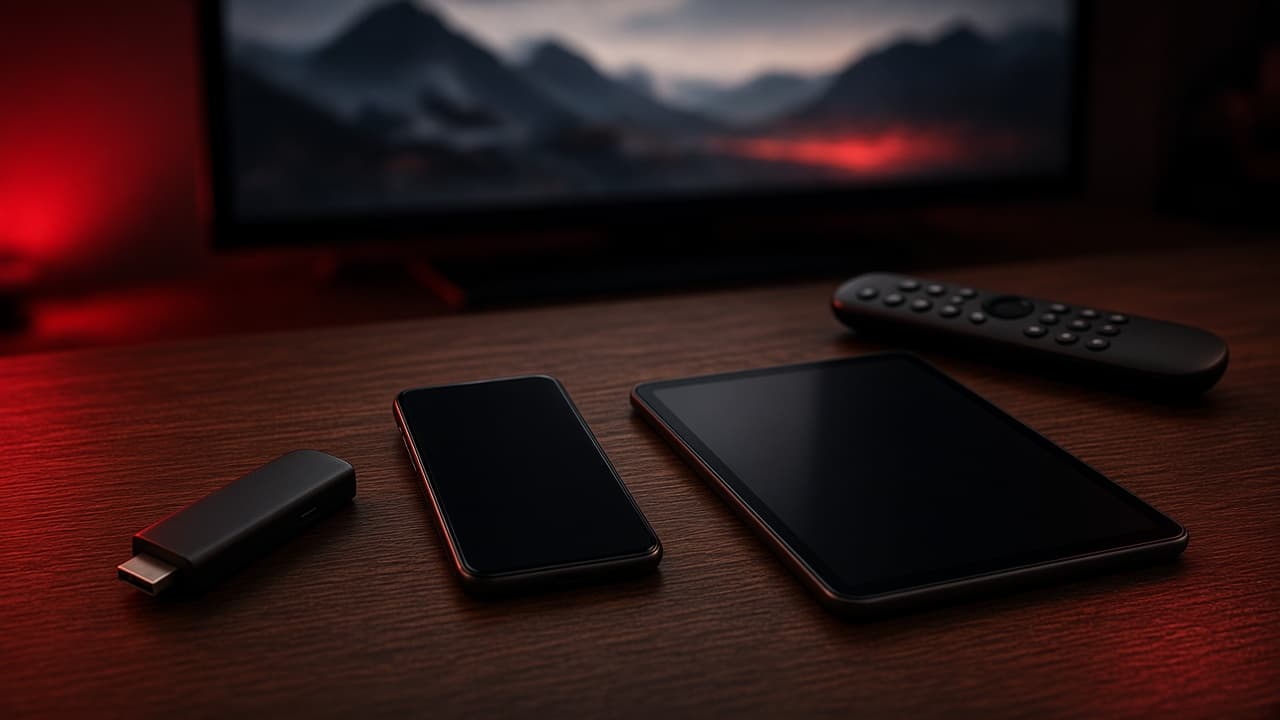
Amazon Fire Stick is the most common IPTV Ontario screen we see. It is also the device people overload with junk apps and then blame the stream. Treat the stick like a tiny computer: cool it, wire it if you can, and only install what you need.
Updated 2026-09-12 · Ontario IPTV
Hardware that actually helps
Use a recent Fire Stick or Fire TV Cube with dual-band Wi-Fi. Put it on the TV’s USB only if that port supplies enough power; otherwise use the included adapter. A stick that brown-outs will freeze during a rush of 4K data.
If the stick lives behind a closed TV cabinet, it cooks. Heat throttles Wi-Fi. Leave vents open or move it to a side HDMI with a short extension.
- Prefer Ethernet adapter on the main TV.
- Keep at least 1 GB free. Full storage makes apps crash on launch.
- Uninstall games and demo apps you never open.
- Turn off “show video on home” previews if the UI feels heavy.
How setup works with IPTV Ontario
We do not ask you to hunt random APK sites. After you order, you tell us it is a Fire Stick. We send activation notes for the player we support and stay on WhatsApp until the guide loads. If a step is unclear, screenshot it — that is faster than a voice note.
Official Fire TV settings still matter: date/time automatic, latest Fire OS when Amazon offers it, and a display mode that matches your TV (4K if the TV and HDMI cable are 4K-capable; otherwise 1080p).
Remote, HDMI and CEC
If the remote drops, replace the batteries and re-pair from the stick’s Bluetooth menu. HDMI-CEC (“Power on TV”) is convenient and occasionally fights other devices. Turn CEC off on the TV if inputs keep switching mid-game.